

Microsoft Teams has become an indispensable tool for remote work and collaboration. Whether you’re a seasoned Teams user or just getting started, there are always opportunities to streamline your workflow, improve your overall experience, and get more out of a tool that most of us have come to rely on.
The number of daily active users of Microsoft Teams continues to rise, recently increasing by 30 million from 270 million users in 2022 to 300 million in 2023. But how many of those users are getting the most out of the many features and options available to personalise their Teams experience?
Microsoft Teams might first appear as a simple communication tool for the workplace, but in fact, it’s a powerhouse of powerful productivity features, built-in apps, and tools. Many of which are not common knowledge. As Mac users and providers of Mac support services, we know Teams for macOS inside and out.
In this first article in a series aiming to help you get the most out of the Office 365 platform and enhance your productivity, we’re looking at Teams for Apple macOS users. We’ll provide some expert tips and valuable insights on how to get the most out of Microsoft Teams for Mac in 2024.
Tip #1: Keyboard shortcuts
We’ll start our list with a classic tip – keyboard shortcuts. While this isn’t the most exciting place to start our list, it’s often the tip that can save you the most time overall.
If you’re using the mouse or both the mouse and keyboard to perform the same task repeatedly, there will probably be a simple keyboard shortcut you can memorise to save several minutes each and every workday – and all those minutes soon add up to hours each year!
Here are some examples to help accelerate your workflow:
- Toggle mute: Command + Shift + M
- Temporarily unmute: Option + Space
- Toggle video: Command + Shift + O
- Raise or lower your hand: Command + Shift + K
- Toggle background blur: Command + Shift + P
- Start a new chat: Command + N
- Save a chat: Command + Shift + S
- Create a new channel: Command + Shift + N
- Open the keyboard shortcuts list: Command + .
- Open commands list: Command + /
Tip #2: Pin important channels
Productivity

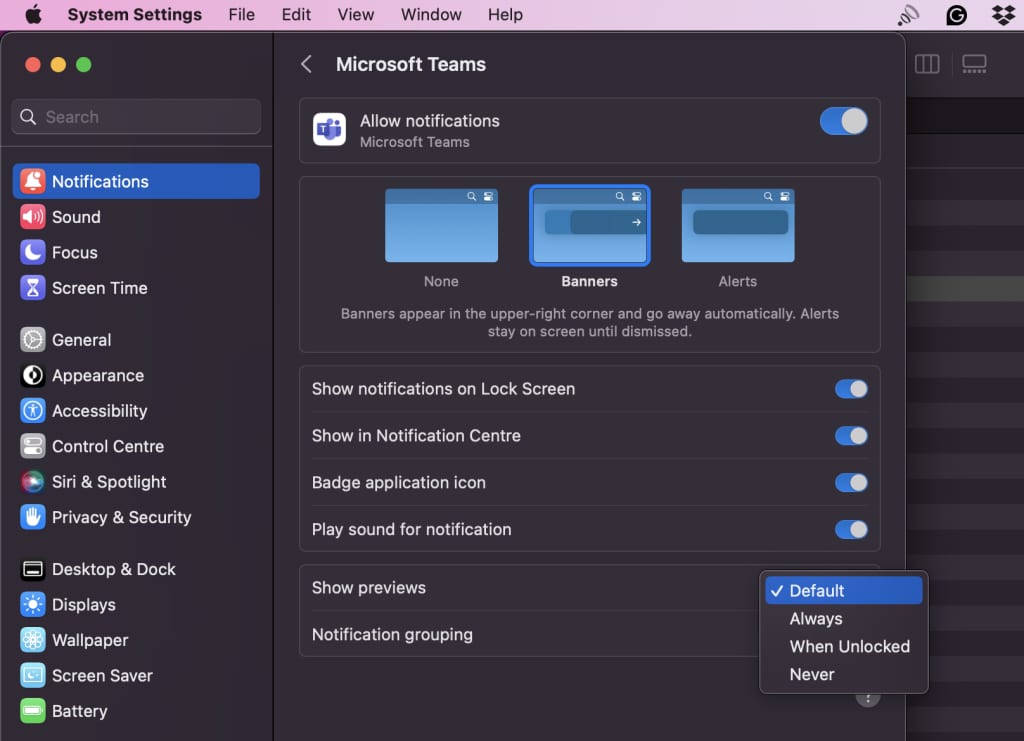
Tip #3: Customise your notifications
Productivity
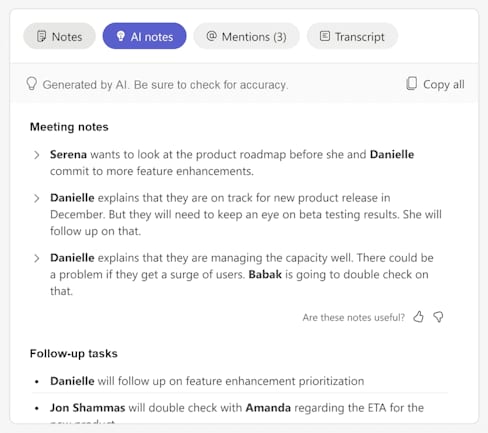
Tip #4: Automatic meeting notes with AI power
Productivity
Tip #5: Search tips
Productivity
Basic search functionality
- Messages: Find specific conversations or keywords within chat threads
- Files: Locate shared files based on their names, content, or upload date
- People: Search for colleagues by name or username
- Channels: Discover channels related to specific topics or projects
Advanced search
- Date range: Specify a time frame to find messages or files within a particular period
- People: Limit your search to messages or files shared by specific individuals
- Channels: Focus your search on specific channels or team
- File types: Filter your search results by file type (e.g., documents, images, presentations)
Search tips
- Use quotation marks: Enclose phrases in quotation marks to find exact matches
- Combine keywords: Use Boolean operators like AND, OR, and NOT to combine search terms
- Try filtering: Use the filters provided in the search results to further narrow down your findings
- Search within files: If you know a file contains specific content, you can search within its text
- Utilise the search history: Access previously performed searches for quick reference
Tip #6: Optimise performance and security by updating Teams regularly
Security
Tip #7: Take advantage of macOS integrations
Productivity
- Spotlight search: Quickly find your Microsoft 365 documents using macOS’s Spotlight feature by hitting Command + Space and then typing relevant keywords
- Siri shortcuts: You can use Siri to create voice commands for common tasks like opening a new document in Word or starting a Teams meeting
- Touch Bar support: If you have a MacBook Pro with a Touch Bar, Microsoft 365 apps provide context-specific controls for a more intuitive workflow

Tip #8: Organise tasks and collaborate with embedded Planner boards
Productivity
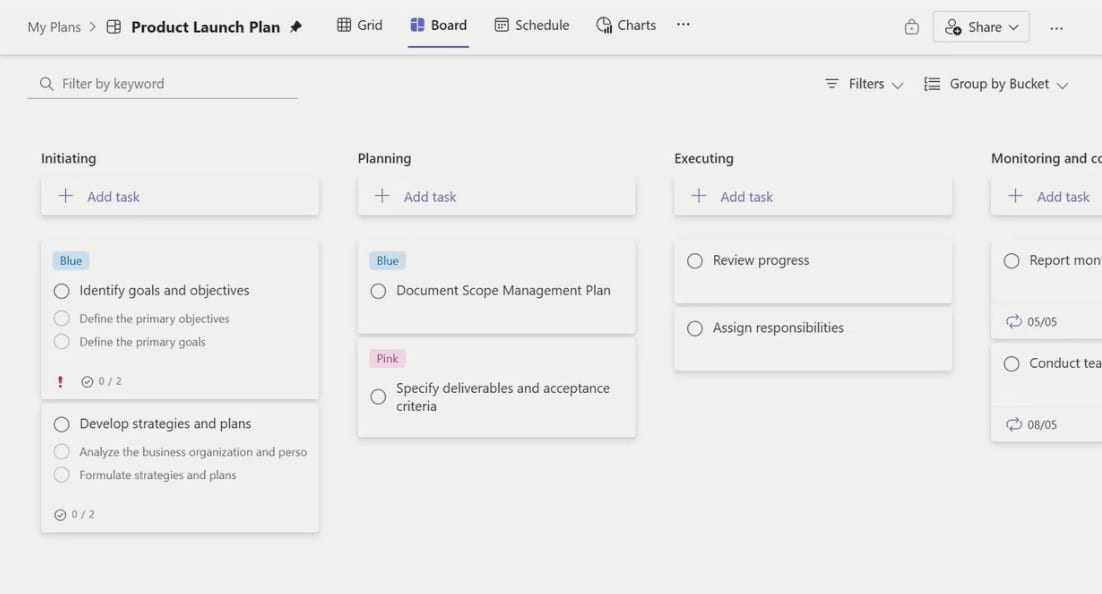
- Create a Planner board: To add a Planner board to a Teams channel, navigate to the channel and select the “Add a tab” button. Choose “Planner” from the list of available apps
- Customise the board: Once the board is added, you can customise its name, buckets, and settings to match your team’s specific needs
- Create and assign tasks: Add tasks to the board by clicking the “Add a card” button. Assign tasks to team members, set due dates, and add labels to categorise tasks
- Track progress: Use Planner’s built-in features to track task progress, update statuses, and view task details
- Collaborate with your team: Discuss tasks, ask questions, and provide feedback directly within the Planner board’s context, ensuring everyone is aligned and informed
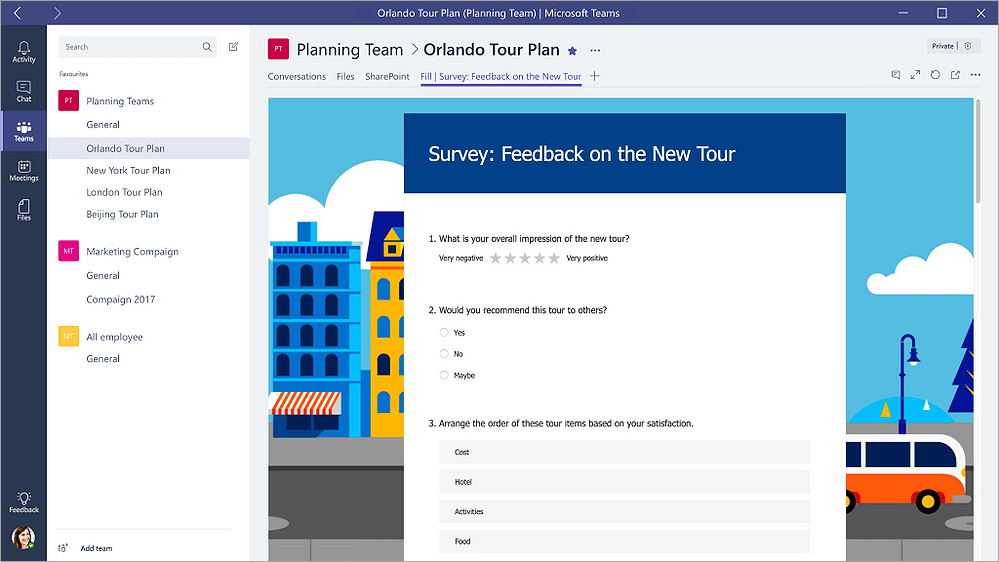
Tip #9: Embed forms in Teams
Integrations
Use cases
- Project feedback: Gather feedback on project progress, team dynamics, or specific deliverables
- Quick polls: Conduct quick polls to gauge team sentiment or make decisions
- Event registration: Collect information from attendees for team events or conferences
- Employee surveys: Conduct employee satisfaction surveys or pulse checks
- Customer feedback: Gather feedback from customers or clients
How to embed Microsoft Forms in Teams
- Create a form: In Microsoft Forms, create a new form or quiz and customise it to meet your specific needs
- Share the form: Once your form is ready, share it with your team by copying the form link or embedding it directly in a Teams channel
- Embed in a channel: To embed a form in a Teams channel, navigate to the channel and select the “Add a tab” button. Choose “Forms” from the list of available apps and paste the form link
- Customise the tab: You can customise the tab’s name and appearance to match your team’s branding
Tip #10: Integrate third-party tools
Integrations
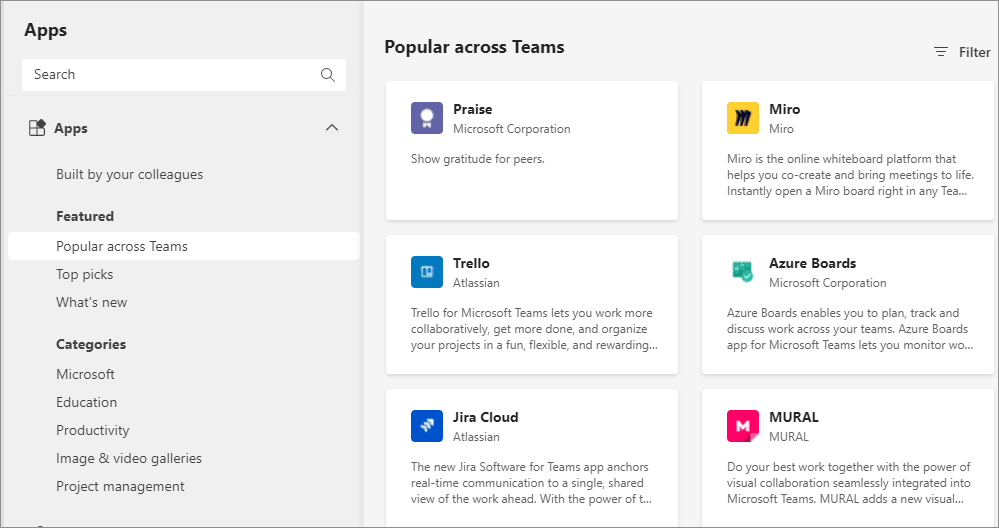
- Use the web-based Power Automate platform to create automated workflows
- Connect macOS-native apps like Mail and Calendar with Microsoft 365 tools to streamline tasks
- Explore templates and customise workflows to suit your specific needs, saving time and enhancing productivity
Bonus tip: Microsoft 365 training
Internal training
Benefits
- Reduced reliance on external consultants: Internal training can help reduce the need for external consultants, reducing costs
- Customisation: Internal training can be customised to meet the specific needs and goals of your organisation
- Focused on key areas: Training can focus on the most relevant tools and features for your employees
- Flexibility: Easier to reschedule if no external party is involved
Disadvantages
- Availability: Time and resources are not always available
- Expert knowledge: Internal staff may not have the skills or up-to-date knowledge to deliver the most effective training sessions
External training
Benefits
- Specialised knowledge: External trainers often have in-depth knowledge of Microsoft 365 and can provide expert guidance on best practices and advanced features
- Objectivity: External trainers can offer a fresh perspective and unbiased advice, free from internal biases or politics
- Investment in future growth: Investing in external training can help your business stay competitive and improve its bottom line in the long run
Disadvantages
- Costs: External training fees can be high, depending on the size of your business and level of training required, although some external providers may offer discounts for larger groups or multiple training sessions
- Hidden costs: Be aware of potential hidden costs, such as travel expenses, accommodation, and materials
- Limited flexibility: The flexibility to customise training content may be more limited compared to internal training